When a People profile needs to be featured or shown in a certain area of the website, you will need to add a tag to it. If you need to remove someone from a certain list component on the site, you will need to remove a tag to do so.
Steps to add an existing tag to a People profile
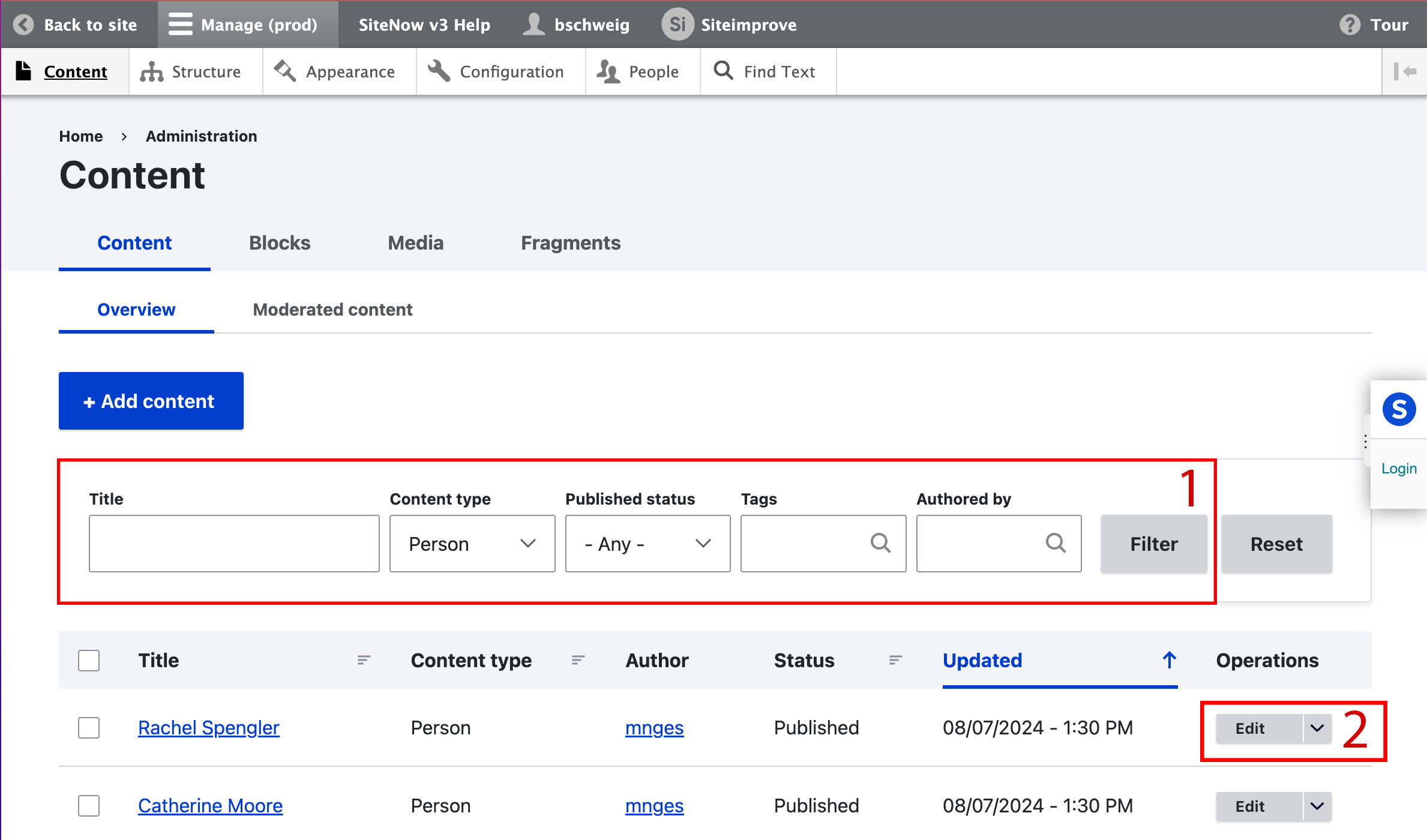
- Locate the existing profile that you need to add a tag to via the Content view of the website admin
- Use the search to filter for the profile if necessary.
Once you have found the right profile, select the edit button.
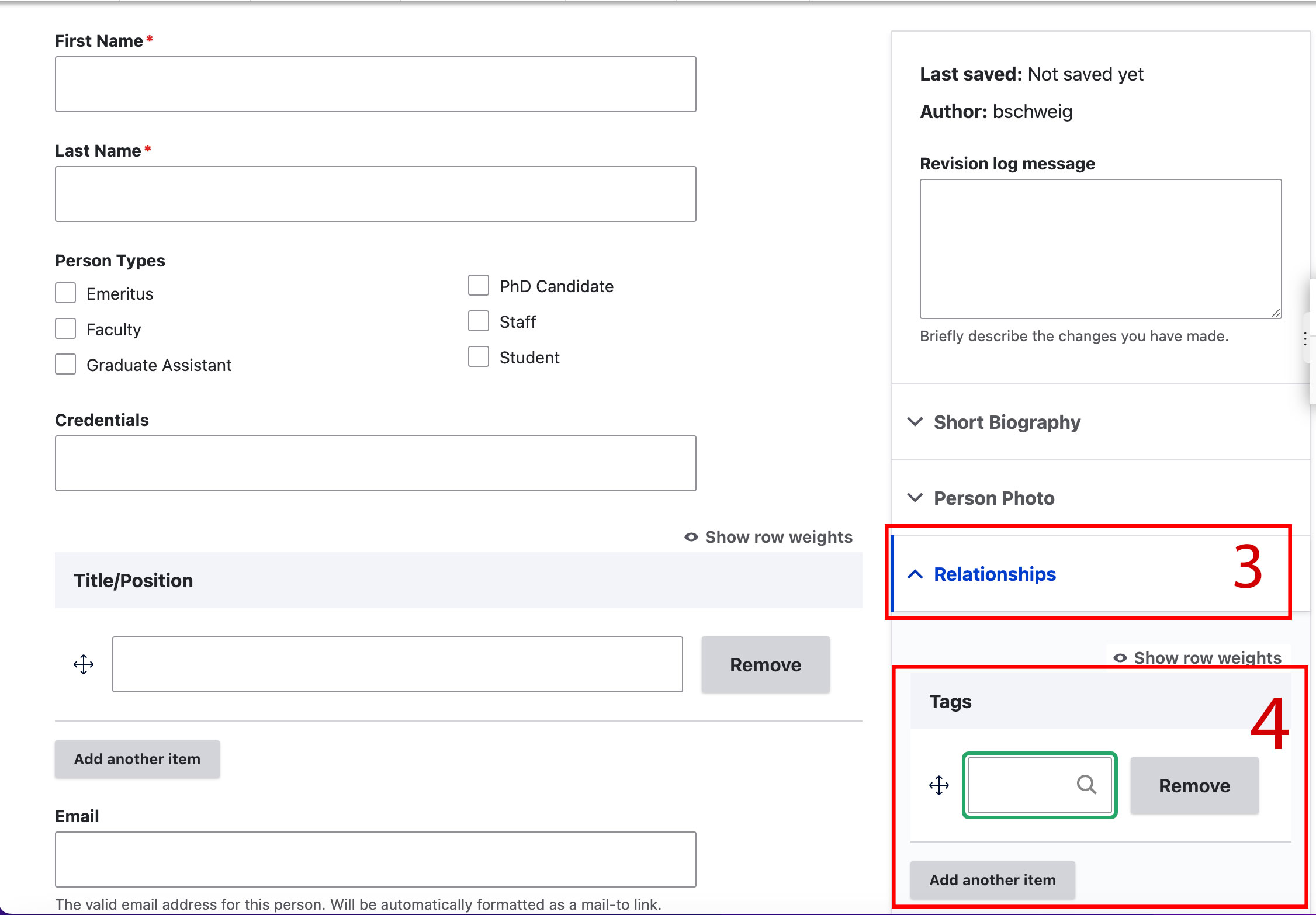
- Use the Relationships dropdown to show the Tags field.
- Type the tag you wish to add into the field to search for and select it.
If you wish to add multiple tags, select "Add another item" button to make a new field appear for each additional tag.
- Once all tags are added, scroll to the bottom of the page and select the blue Save button.
- This will ensure that this profile can be included in list components filtered to display the chosen tag(s). You may need to change the number of items displayed or other settings for the list component(s) in order for the profile to display.
Steps to remove an existing tag from a People profile
- Locate the existing profile that you need remove the tag from via the Content view of the website admin
- Use the search to filter for the profile if necessary.
Once you have found the right profile, select the edit button.
- Use the Relationships dropdown to show the Tags field.
Select the Remove button next to the tag(s) that you wish to remove.
- Scroll to the bottom of the page and select the blue Save button.
- This will remove this profile from any list components that are filtered to display profiles with the tagged term(s).
Additional support
Resources for additional learning
- Person content type from the OSC web team
- People content lists from the OSC web team
- Adding a tag to a person content type (video) from the OSC web team
- Adding people to your page using tagging (video) from the OSC web team